
Data Debugging
VATSIM Radar provides ways to debug Data Debugging.
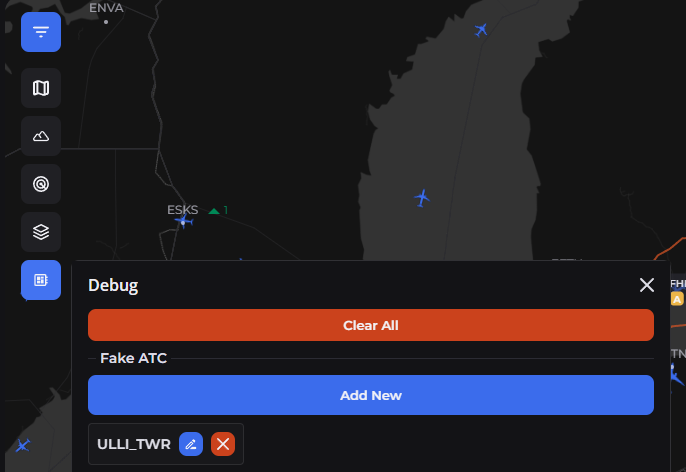
Fake ATC
To test how controllers are displayed, you can add fake ATC:
- CID: auto-generated, you can change it on creation (once)
- Name: any controller name, defaults to CID
- Callsign: controller's callsign, no validation here, be careful
- Frequency: can be random unless you need to test VATGlasses
- Facility/Rating: can be random
- ATIS lines: optional
Hit Save button - controller will appear on map shortly.
To enable this functionality, you can open Map Settings -> Scroll to the bottom -> Debug Mode (Next only).
Setting up prebuilt
This section will help you to reduce load on your machine, skipping whole development server setup.
- Follow steps until
Getting it doneinside Setting Up Guide - Instead of running project directly, run
yarn start:nextoryarn start:prodfor project to start - Check it out on
http://localhost:8080
You can also setup project using docker compose up from guide above, but that will also setup development server, which is much heavier.
If you only need data testing, it is recommended to use yarn start:* instead of docker compose up to use prebuilt image.
Raw Data Debugging
First, you should notice new section in map settings dropdown.
Open it.
VATSpy
Modify and upload VATSpy.dat and Boundaries.geojson from original repo.
SimAware TRACON
You have 2 options:
- Download latest release
TRACONBoundaries.geojsonand modify, then upload it - Use
compiler.jsfrom repo to get this file locally, then to upload it
VATGlasses
Minify whole repo to anyname.zip file and upload it.
Pull Requests Debugging
You can debug VATSpy or SimAware TRACON Pull Requests.
GEOJSON Debugging
This is available without local setup.
Open:
- VATSpy:
https://vatsim-radar.com/data/vatspy/PULLREQUEST/compare - SimAware TRACON:
https://vatsim-radar.com/data/simaware/PULLREQUEST/compare
Where PULLREQUEST is Pull Request ID (ex. https://github.com/vatsimnetwork/vatspy-data-project/pull/123 - ID is 123.
Data Debugging
Enter PR ID in Debug window mentioned above and click "Save". Wait a few seconds.
Some notes
- Clear buttons are always highlighted, even if you didn't upload anything
- Files are saved under app/data/custom. You can even edit them directly, if you want! Just don't forget to set correct permissions, since Docker can usually mess with them and you won't have edit access